
Track Every Invoice From Sent to Paid.
See What’s Outstanding.
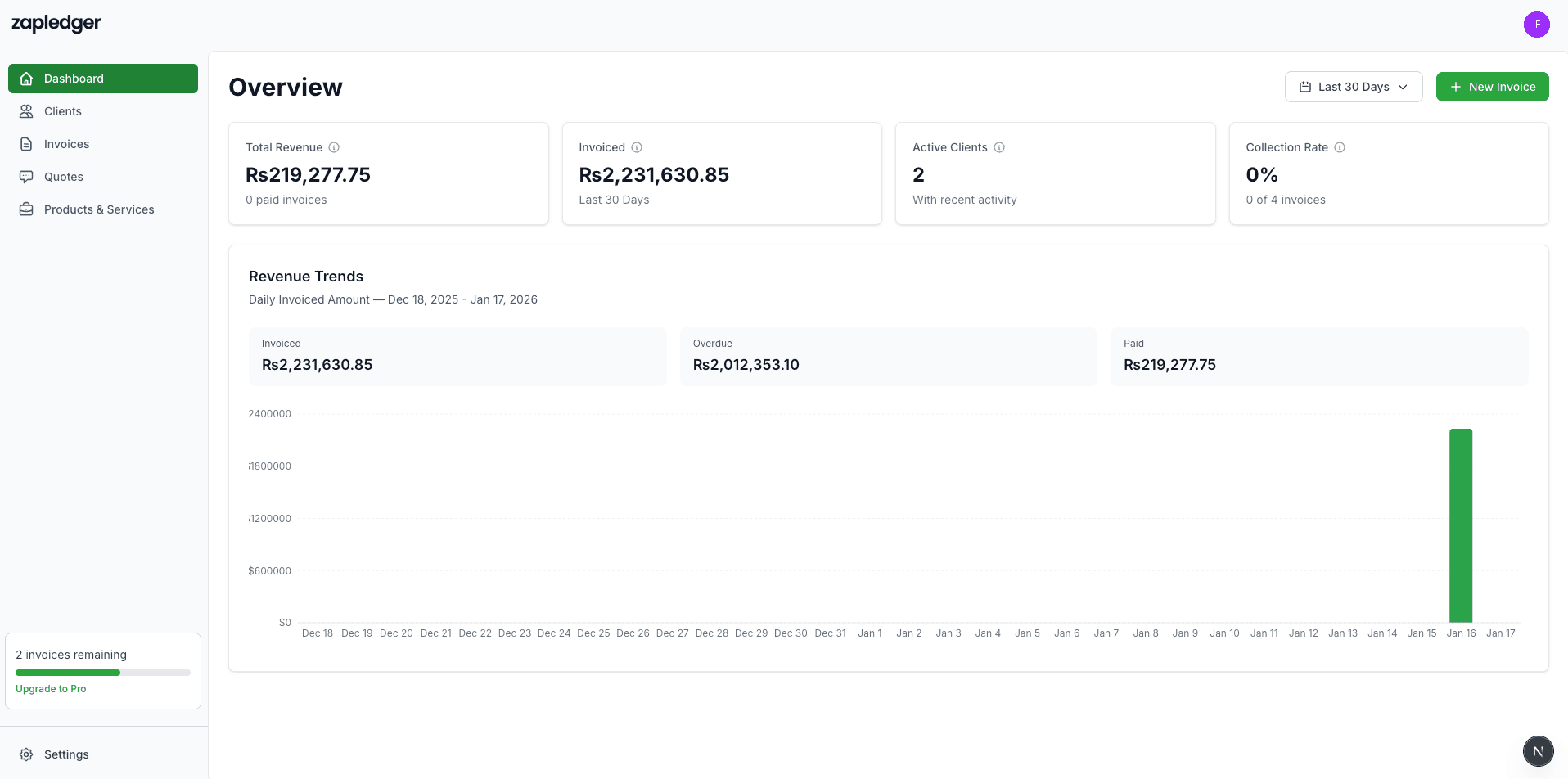
Record payments on each invoice, see balance due and status (Unpaid, Partially Paid, Paid). Your dashboard shows total collected and outstanding so you know who’s paid and who to follow up with.
How Payment Tracking Works
Record payments on each invoice; status and balance due update automatically. See the big picture on the dashboard.
Record Payments on Each Invoice
From the invoice detail page, click to record a payment. Enter the amount (in the invoice’s currency), payment date, and method—Cash, Bank, Transfer, or Other—plus optional notes. The payment is saved and the invoice’s balance due and status update automatically. You can’t record more than the current balance due.
Status and Balance Due
Every invoice shows a status: Unpaid (no payments), Partially Paid (some payments, balance still due), or Paid (balance due is zero). Balance due is always derived from the invoice total minus non-voided payments, so it stays correct. When you mark an invoice as sent and record payments, you see at a glance what’s left to collect.
Payment History & Void
All payments for an invoice are listed on the invoice page—date, amount, method, and notes. If you recorded a payment by mistake, you can void it. Voiding removes the payment from the balance calculation and updates the invoice status and balance due. Payment records are kept for audit; they’re just excluded from totals.
Dashboard & Invoice List
The dashboard shows total income this month, total outstanding balance across all invoices, and counts of paid vs unpaid/partially paid invoices. Your total revenue (all-time collected) is also available. On the invoices page, filter by status—all, unpaid, partially paid, paid, overdue, or cancelled—and use date ranges to see collected, outstanding, and overdue for that period.
What You Get
All of this is available in your Zapledger account.
Stop Guessing Who’s Paid
Record payments, see balance due and status, and keep your dashboard in sync.
Get Started Free